
Delete Your Social Media Apps
Ok, I won't go as far as I want to on this one, but it's a good first step towards protecting your privacy (and breaking a habit!).

Happy New Year, everyone! I know I’ve been MIA for a while, but I’m back (hopefully) with some fresh privacy content!
I’ve been thinking about what this newsletter should be moving forward, and while I like the format we’ve been running with so far, I feel like I’m running low on ideas (or at least brainstorming them is taking a toll), so if there’s anything about digital privacy YOU want to know more about, please send your thoughts/suggestions to womensprivacyproject@pm.me, and I’d be happy to take a deep dive!
Now, let’s get to today’s privacy tip!
What am I suggesting and why?
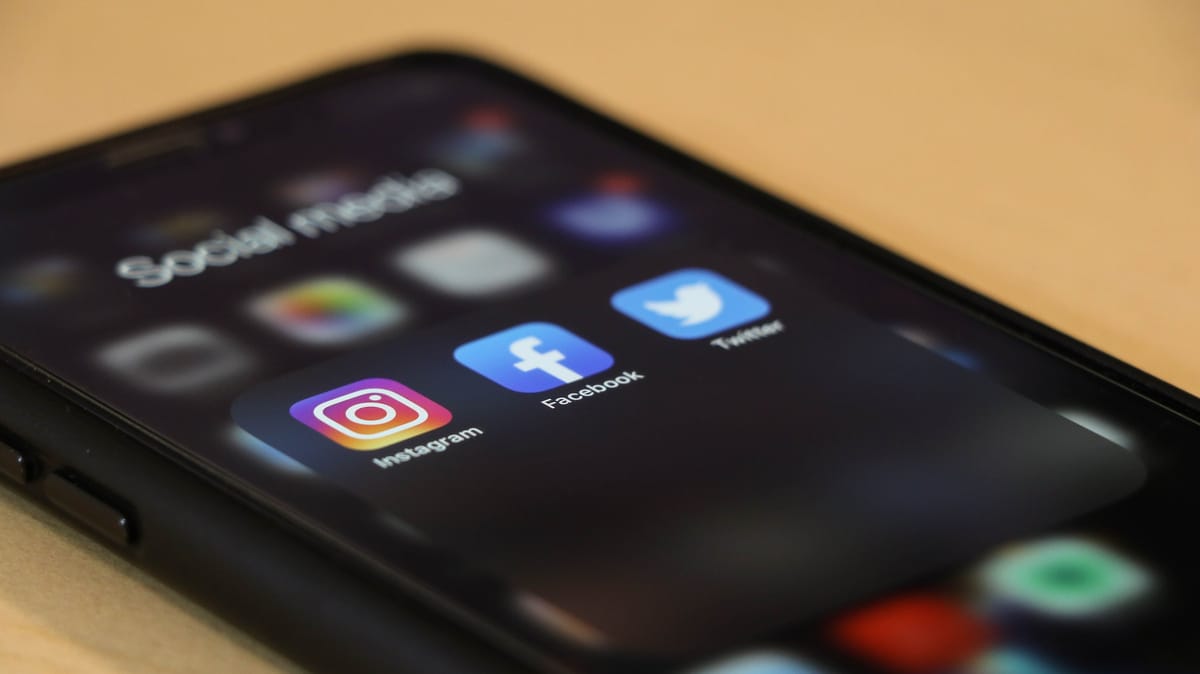
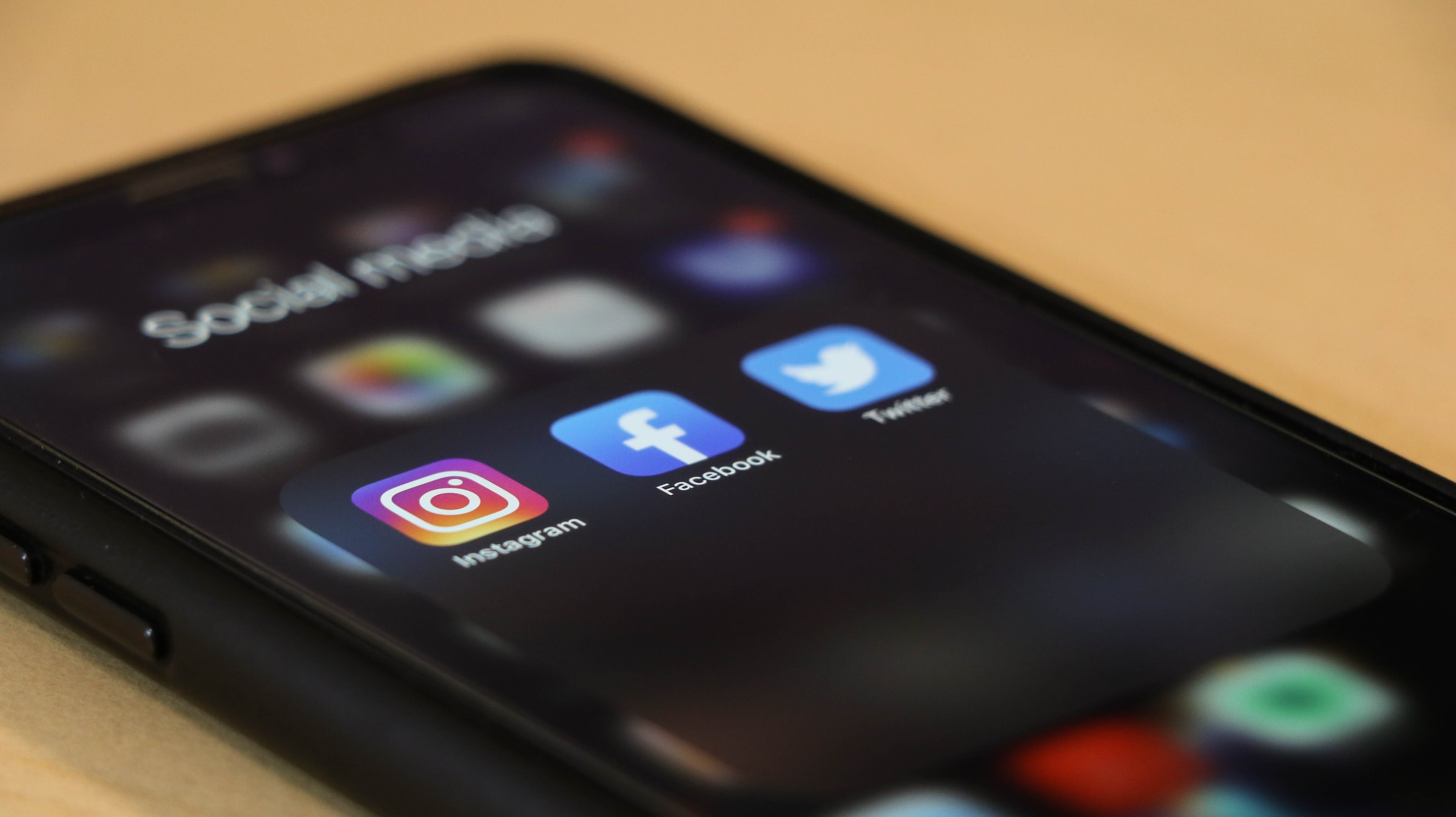
Remove all social media apps from your phone, and instead—if you must—use your phone’s web browser to access them. Social media apps are data hogs—they’ll take whatever they can get from your device, including your location, your call history, your contact list, your chat and text logs, and even data from other apps installed on your device.
You can limit what these services have access to by using them strictly on your web browser rather than installing their mobile apps and letting them vacuum up your privacy.
An added bonus?
If one of your New Year’s Resolutions™ is cutting back on social media usage, this is a great way to kick the habit of mindlessly opening and scrolling your feeds! No more red dots, no more notifications screaming for your attention… bliss.
You in? Let’s go!
Ok, nice and easy now… you’re gonna just go ahead and delete the apps. Go on, give that Facebook/Twitter/TikTok/Instagram app icon a loooooong press, then tap that minus sign or tiny x, or if necessary, tap the big red “Remove App” followed by the also big red “Delete App”.
That’s it! You’re free!
Still want an icon for quick access?
If you’re not looking to break free entirely, you can always visit the website (e.g. facebook.com) on your phone’s default web browser (Chrome for Android, Safari for iPhone), and you can add that website to your home screen.
iPhone
- Open Safari.
- Type in the web address of the site you want to add to your home screen to visit the website (e.g. facebook.com).
- When the website is open, tap the Share icon in the bottom menu.
- Select Add to Home Screen.
- You can change the name to whatever you want, then tap Add. You can move the icon around like any other app icon.
Android
- Open Chrome.
- Type in the web address of the site you want to add to your home screen to visit the website (e.g. facebook.com).
- When the website is open, tap the three-dot menu icon in the top right of the screen.
- Select Add to Home Screen.
- You can change the name to whatever you want, then tap Add. You can move the icon around like any other app icon.
Dig Deeper
While this is not a perfect solution for protecting your privacy from social media giants, it’s a good first step.
In all honesty, the next best step is deleting your social media profiles altogether, but even then, social apps have a history of creating so-called ‘ghost’ or ‘shadow’ profiles as they track you around the internet.
The only way to truly escape the eye of social networks is to delete your accounts and block ads, cookies, and social buttons (something a good VPN can handle for you). And yes, I know that’s not a small ask.
A smaller ask might be suggesting that you log out every time you leave a social media website, but admittedly, they don’t make that easy since it’s much easier for them to follow you around the internet, building up your profile when you’re logged in.
We can only do what we can do, and that’s why this newsletter exists! Hopefully, one small step in the direction of privacy leads to another small step, and eventually, all our small steps add up to a long walk! So let’s keep on truckin’!